
Simple Layouts is an add-on/extension for Blender designed to enabled 3D artists with the ability to save object and visibility states and 3D views for iterative workflows, 3D printing and design layout or per animation shot.
Install (Blender 3.6-4.3+)
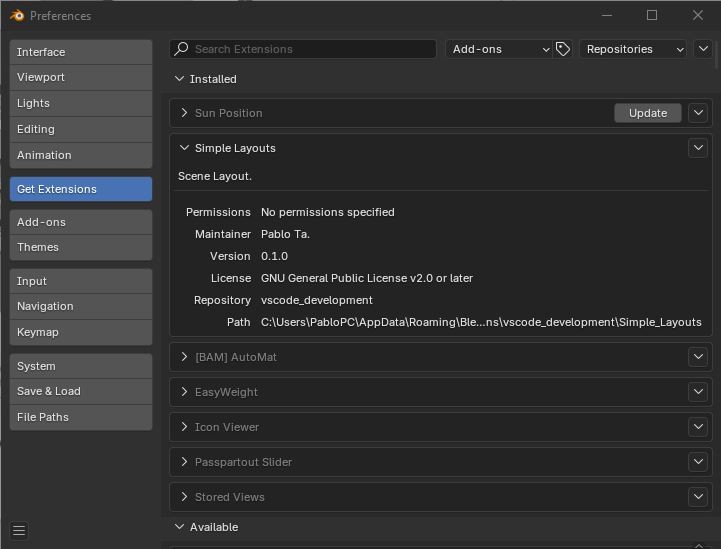
Simple Layouts can be installed as a legacy addon or local extension. It comes as a .zip folder with no need to extract.
Blender 3.6 YouTube: Install Add-ons 00:38-https://youtu.be/14G_YIVdBd0?t=38 , Blender 4.2 user Add-ons YouTube https://youtu.be/_dJxMgMKYgU?si=3CJDoTdxjcQa2mvC.
Blender 4.2+ Extensions from disk [https://youtu.be/M3iXHj2-9-g?si=46LDhFkL_NZhg5UE&t=42]
Make sure to remove any previously installed versions first and restart Blender.You will not lose layouts data uninstalling the add-on.
Remote extension updates not currently available
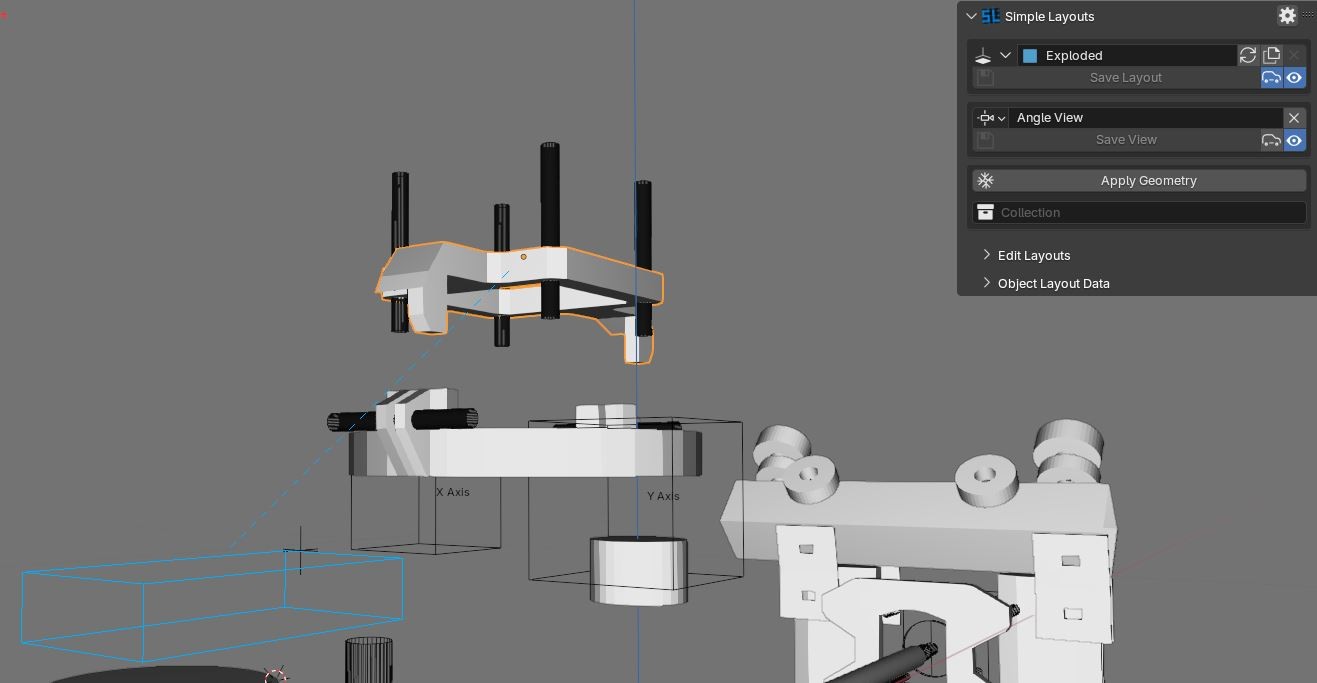
For Simple Layouts we use the term 'Layout' to refer to the addon's Layout property groups. Each Layout contains a name, UID, filter settings, other settings including lock, applied geometry, associated View and a colour tag. Note, Layouts themselves don't store any scene information.
'State Data' refers to object and collection states. They are stored as custom properties and are associated with each Layout, therefore each Layout will activate different state data. State data includes object transforms (location, rotation, rotation mode, scale), object restriction toggles (all visibility and selectability options seen in the outliner), local/global edit mode and collection restriction toggles. Objects that aren't linked to the active scene or are not within any enabled collections will be ignored when saving states.
Additionally object source and target references are stored for use with Applied Visual Geometry.
Animation data will override any layout state data.
When creating the first Layout, a Global Layout will be added first and saved. The Global Layout is used as a basis for all other Layouts where state data has not been saved or overridden. Global filter settings affect all other Layouts and take priority over local Layout settings. For example, unchecking
Views area property groups, each containing precise 3D view coordinates. Views are associated with Layouts. There are three types of Views.
3D View, any position and orientation
Preset Views, Blender's viewpoints Top, Bottom, Front, Back, Left, Right. These Views don't contain location data and can't be saved over
Camera View, use an assigned camera. Note, this also sets the scene's render camera.
Auto-Save Layouts and Views, when enabled State Data will be saved prior to changing the active Layout and performing Layout operations such as Duplicate and New. If auto-save Layouts is not enabled, creating a new Layout will discard unsaved changes while the new Layout will be a copy of the active Layout. If auto-save is enabled, unsaved changes will not be applied to the active Layout however they will be applied to the new Layout.
State Data is stored on objects and collections and are associated with Layouts. Layout lists are stored in scenes but can be accessed by any scene. Only one list can be assigned to each scene. E.g. Scene B may use the Layouts from Scene A, all Layout data is shared and will be not unique to the scene. Alternatively, Scene B could have its own unique Layout list regardless of any object or collection linking.
The active Layout will always be save when the file is saved.
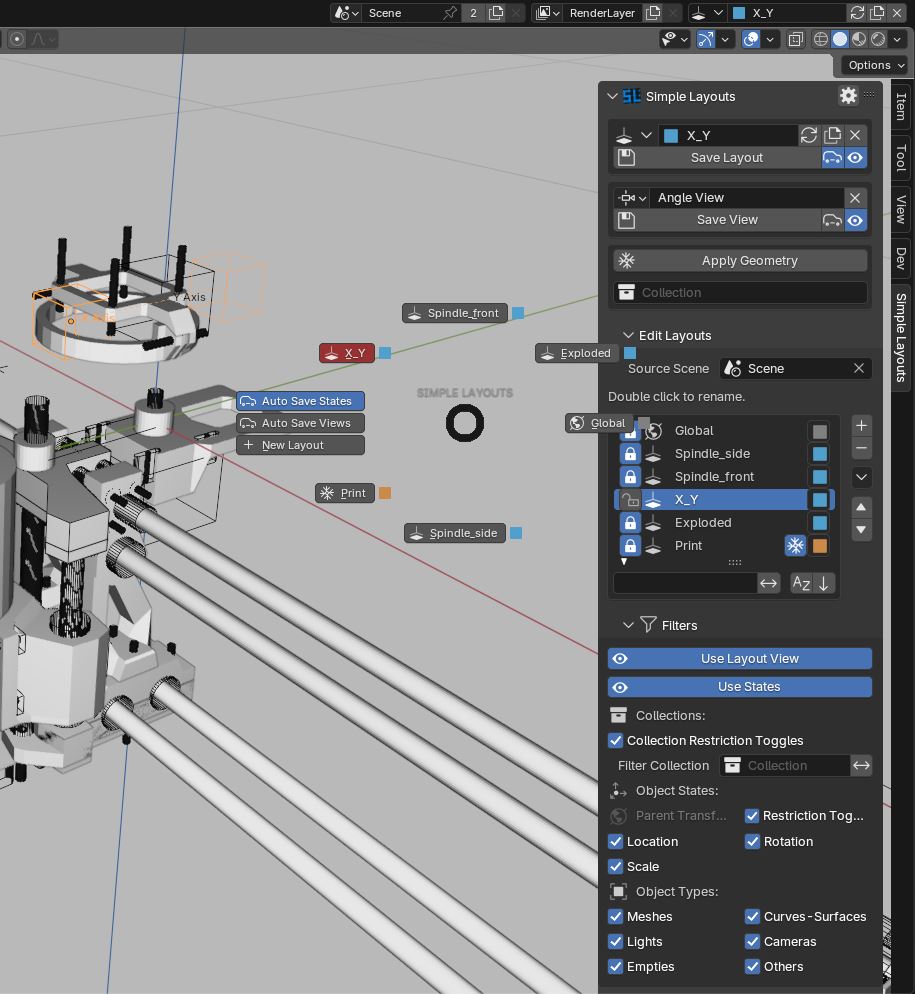
The default interface location for Simple Layouts in the right panel in the 3D viewport. Optionally this can be moved to the View tab (see Addon Preferences). In the upper section of the panel basic Layout options, selection, naming and operations are available.
Basic Layout Operations:
Refresh, reload the active Layout without saving changes.
Duplicate the active Layout.
Delete the active Layout.
Save Layout, Manually save Layout.
Auto-Save, Saves Layout states before changing active Layout.
Use States, Global setting for ignoring Layout activation/saves.
Views:
Choose between preset views (Blender's viewpoints, angle only) or create custom views (angle, position , projection modes, zoom).
Drop down selection, select a View to be assigned to the active shot . Optionally 'New', and 'Camera View' will create and assign new View.
Custom Views
Edit Label, Name your Views.
Assign Camera, convert this View to a Camera View type.
Delete the active view.
Save View, Manually save the active View.
Auto-Save , saves the View before changing the active Layout.
Camera Views
Camera to be activated and used as scene render camera, fall back is Custom View
For convenient Layout selection and creation, the top bar selection widget and pie-menu can be configured in add-on preferences.
The Pie Menu is a great way to get started, quickly making new Layouts and switch between them. However, if there are a larger number of layouts it will increasingly difficult to navigate.
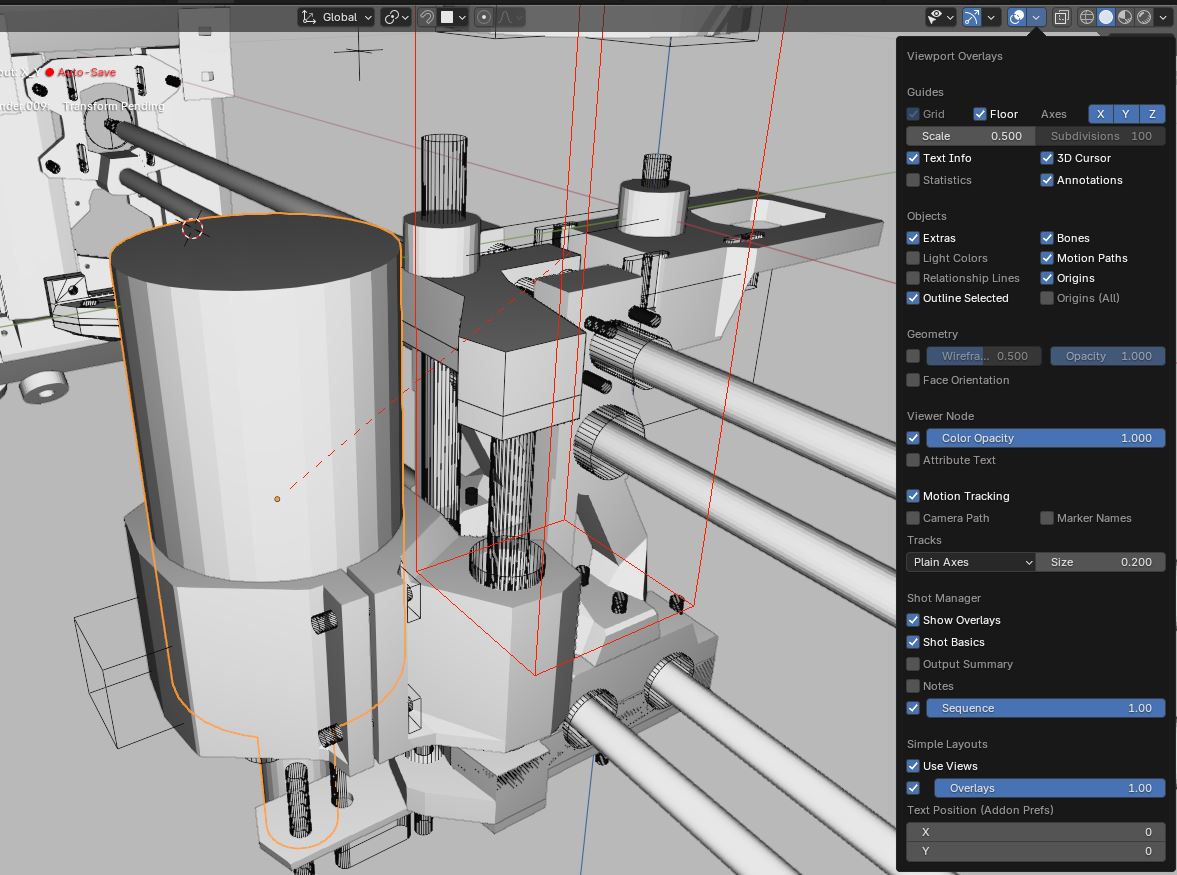
3D Overlays
Bounding boxes display the stored transforms for the active Layout. If an objects coordinates have changed, a dashed line from the object to the bounding box is visible. These guides are a useful way to visualise pending changes and avoid accidental changes. The colour of the 3D overlays are determined by object colours (Properties Panel->Object->Viewport Display->Color).
Text Overlays
Displays the name of the acitive Layout, auto-save enabled, most recent JSON auto-backup, the active object's editing mode (Layout/Global) and pending object changes.
Overlay Settings
Navigate to the Viewport Overlays popover in the 3D view header. Simple Layouts settings will appear near the bottom of the menu.
Use Views. Allow saved Views to be activated in this viewport.
Overlays. Set overlay opacity, 0 to disable. Affects only this viewport.
Text Position. Same as addon preferences. Offset text overlay position for all viewports.
Overlay settings are set per viewport, except for Text Position. Text scaling is determined by Blender display setting, Resolution Scale.
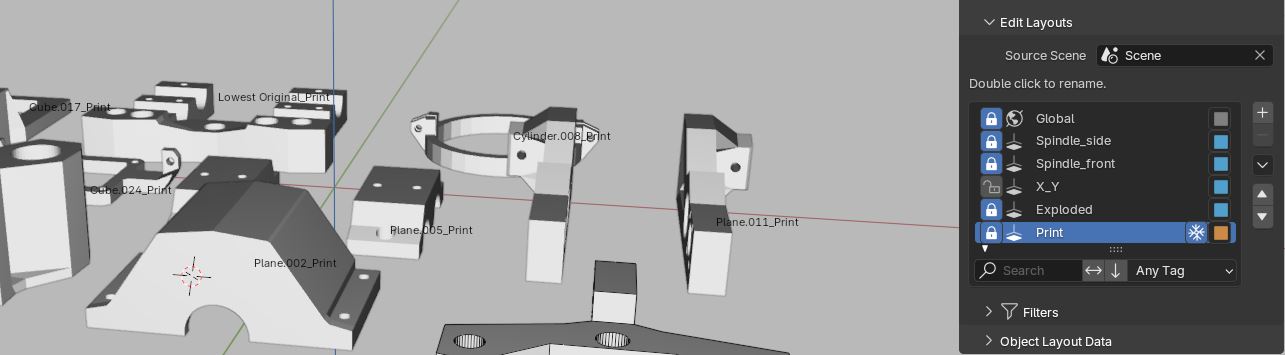
Source Scene, choose a scene a where Layouts are to be stored and accessed. Deleting the source scene will also delete its Layouts and will no longer be accessible by any referencing scenes.
Lock, Prevent saved states associated with this Layout.
Label, Double click to rename Layout.
Applied Geometry Toggle, Hide/show the applied collection.
Tag, Choose a colour tag to help identify Layouts. Can be used for filtering.
List Sorting and Filtering, use filter keywords, invert, reverse sort order and filter by colour tag. Does not affect actual list.
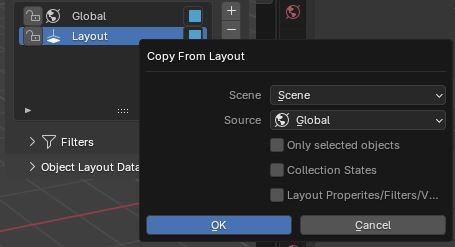
List Context Menu (Down Arrow)
Copy from Layout , Copy Layout properties, object states and collection states from another Layout.
Duplicate the active shot.
Delete All Layouts , including state data, optionally delete all associated Views.
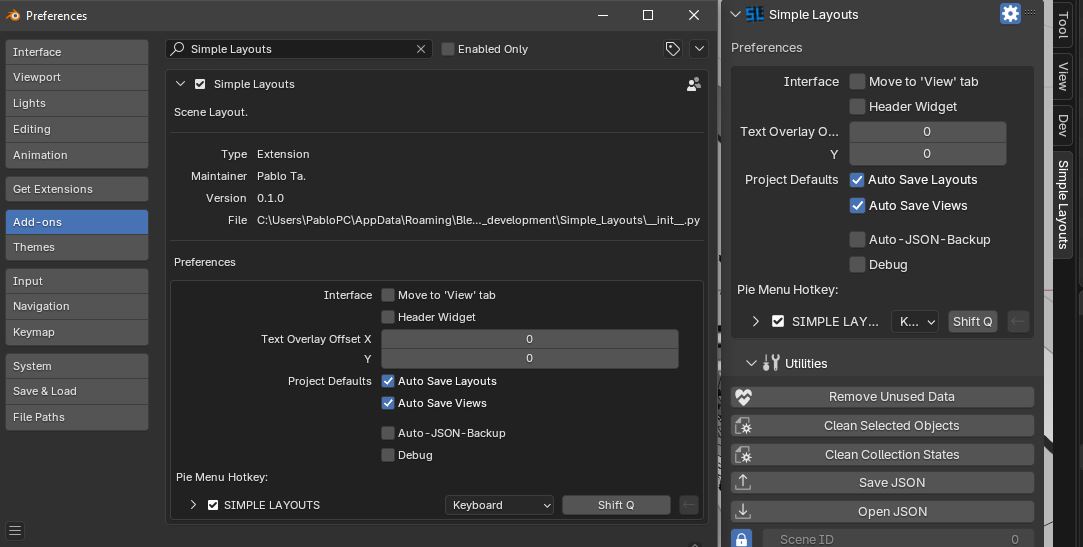
Move To 'View' Tab, Move the 3D view side panel to the View tab instead of using the additional Simple Layouts tab. Useful to avoid a congested side panel.
Header Widget, Display Layout selection widget in Blender's header among Scenes and View Layers.
Text Overlay Offset, Offset the position text overlays in 3D viewports. NOTE: Scale is adjusted according to Blender interface settings.
Project Defaults
Auto Save Layouts, the default state used for new projects.
Auto Save Views, the default state used for new projects.
JSON Backup, JSON data includes Scene->Layouts, Object states (All with Layout states), Collection states (All with Layout states)
Auto Backup Write JSON backup files storing Layout data to disk.
User Backup Directory, If checked, save .json files to the addon preferences directory, shared across projects. Otherwise, use a local to scene directory.
Directory, The filepath used for writing .json, File are named accordingly "SL_backup_[filename]_[unique number].json" .
Interval, How often backup files are saved, intervals are increment by changes in the active Layout.
Debug, Display debug info in console.
Pie Menu Hotkey, Assign a shortcut to display a Layout selection pie menu.
Add-on preferences are stored in local User settings per Blender version. They are persistent across all projects.
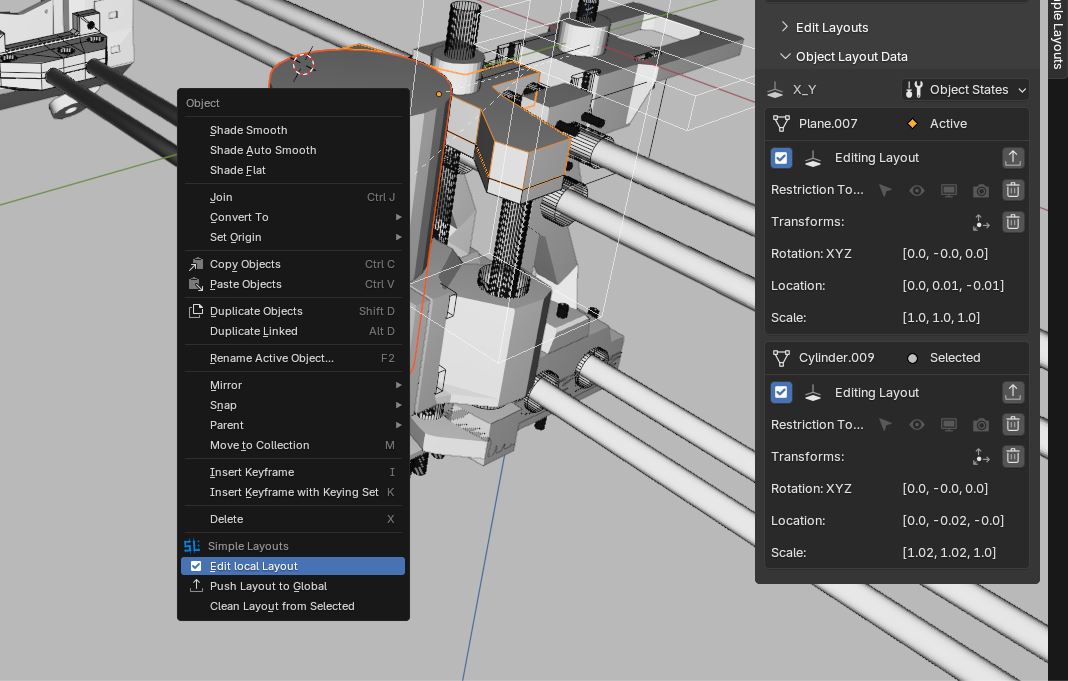
The Object Layout Data panel and the right-click/W Object context menu display object state data information and options, per object, per Layout.
Objects will appear in this list if they are active, selected or have pending changes. The state data displayed is read-only but can be deleted by clicking the trash icon. This will only delete state data associated with the active Layout.
Each object in the list can be unchecked, removing its Layout overrides and activating Global Edit Mode.
The active object will always appear at the top of the list, followed by selected objects.
Push To Layout/Push To Global. Save the objects active Layout state data to the Global Layout and enable Global Edit Mode.
Object States Utilities
Remove Same as Global. If an objects state data is exactly the same as for the active Layout as the Global Layout, remove the date. Optionally also set the object to Global edit mode.
Clean Layout from selected. Remove the active Layouts state data from selected objects. Optionally uncheck Only Active Layout to fully clean the object.
Push All Changes to the local Layout and push to the Global Layout. Objects will also be set to Global Edit Mode
Global Edit Mode refers to when an object the isn't reading its local Layout override but its Global Layout data instead. Changes made will also be saved to the Global Layout.
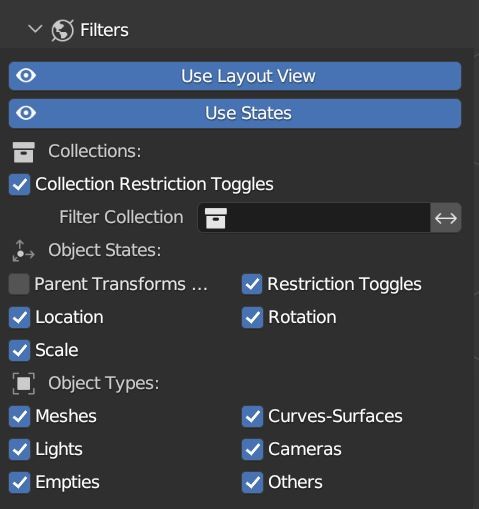
Each Layout poses filter options which can be used to restrict which properties are saved and read upon Layout activation. Regular Layout filters may be overridden by Global Layout filters, which have to the power to disable state data for all Layouts. When filter items are unchecked for the Global Layout's filters, they will be greyed-out for all other Layouts.
Use Layout View. Allow activation the Layout's associated View.
Use States. Allows activation of objects and collection states.
Collections
Collection Restriction Toggles. Allow activation of collection Enabled state, object Selectable, Visibility, Viewport and Render toggles.
Filter Collection. Only affect objects within this collection. Invert to exclude objects in the collection.
Object States
Parent Transforms Only. Layout transforms will only affect top level objects in a hierarchy. Does not include Child Of constraints.
Restriction Toggles. Objects toggles as seen in the Outlines and object data Visibility panel. Selectable, Visibility Viewports and Renders.
Transforms. Location, rotation and scale.
Object Types. filter object data types. While all 3D assets are called 'objects', types refer their contained data type. Others includes Meta Ball, Grease Pencil, Text, Lattice, Speaker, Armature and Light Probe objects.
Filters are per Layout but maybe overridden by unchecked filters on the Global Layout.
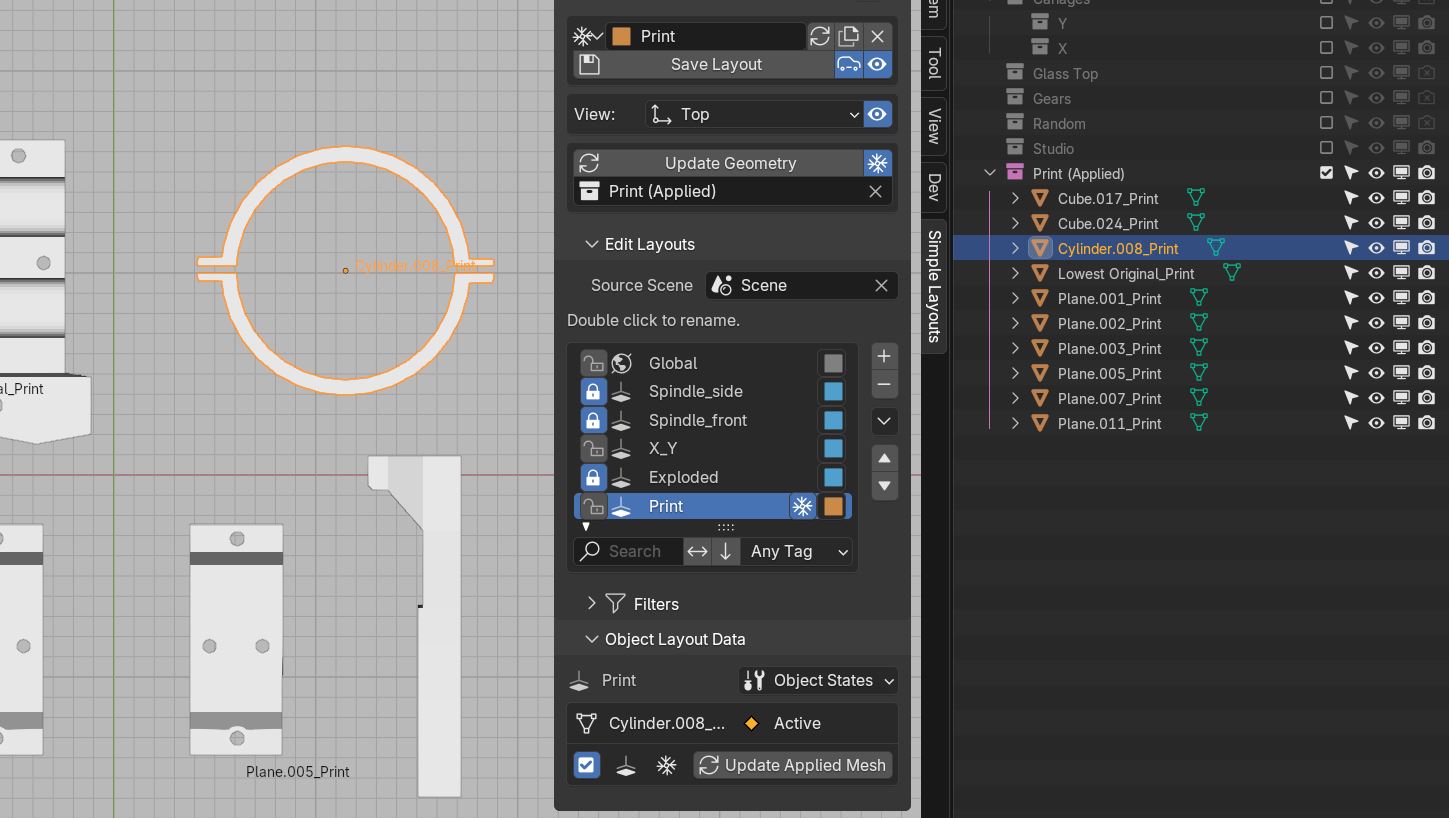
Make applied copies of all visible objects and place them into a new or assigned collection. Original geometry will not be affected however the enabled collection will be restricted to the applied collection when Use visual Geometry is enabled.
This feature was designed to aid modelling for 3D printing by keeping non-destructive source copies and print only copies. For example, meshes may need to me separated and laid out in ways that would usually break mirror or array modifiers or perhaps small tolerances need to be added.
Applied Visual Geometry is the result of geometry that has been evaluated as pure mesh geometry, without any extra layers such as modifiers, dynamic or complex structures such meta-balls, surfaces and curves. All applied object types will converted to a regular mesh type object. Transforms remain unaffected. Source objects are given a reference ID that is also stored as a source ID on applied objects.
Update Geometry
Update Meshes. Reload mesh data from the object's source.
Update Objects. Reload object data such as transforms,
Add Missing Objects. Add objects missing from the applied collection. The source object list is derived from the visible object on the active shot when Applied Visual Geometry is not enabled.
Multiple Layouts can be assigned the same Applied Collection, however be mindful that if the source object list is varies between Layouts, unrecognised objects are labelled as #OLD. This tag will also be used if the source object is delete or hidden. If #OLD objects are found during a geometry update the prefix will be removed.
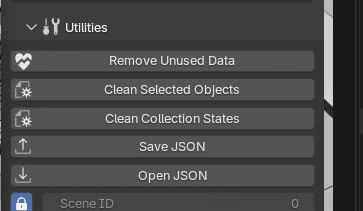
Remove Unused Data. Deletes custom properties that reference non-existent Layouts.
Clean Selected Objects. Remove Layout state data from selected objects.
Only Active Layout. Delete only the active Layout's state data.
Toggles. Delete object selection, visibility and render toggles states.
Transforms. Delete Location, Rotation and Scale state data.
Clean Collection States. Remove Layout state data from collections.
Only Active Layout. Only clean the active Layout
Only Active Collection. Only clean the active collection.
Save JSON. Save a .json backup file containing the Layout list and Layout state data for all objects and collection. Does not save any scene data or assets.
Open JSON. Load a .json backup file.
Scene Names. Define which scenes to exclusively import Layouts from. Separate with commas for multiple scenes.
Match Scenes. Method for mapping onto scenes.
Don't Match. All layouts will be added to a single list within the active scene.
Match By Name. Match Layout lists to scenes with corresponding names.
Match By ID. Match Layout lists to scenes with corresponding IDs. See Scene ID.
Replace Existing. Replace existing Layouts with matching ID. Scene ID must also match.
Load Views. Views with non-existing IDs will be created from JSON. Enable Replace Existing to allow override of matching Views, otherwise views with existing IDs are ignored.
Scene ID. Used to identify Layout lists. Adjust with caution, existing state data will not be accessible. This ID should be unique per scene. This property belongs to the active scene not the source scene. Adjusting is useful in some cases such as when a scene is copied or when rebuilding from a JSON backup.
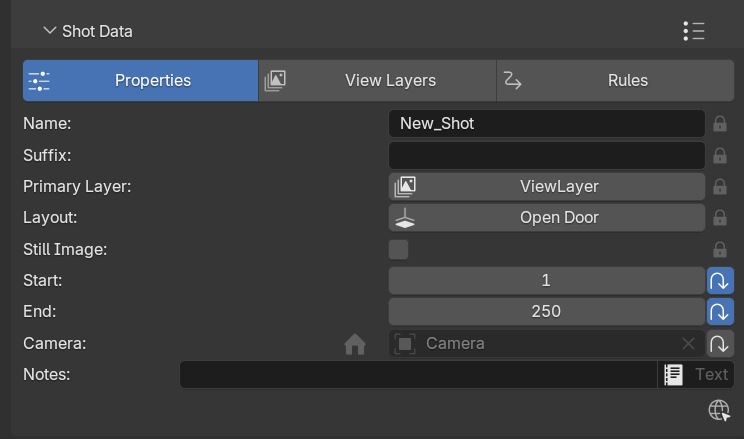
Shot Manager Integration
Shot Manager Lite/Pro 2.0.6 hotfix4 + recognizes Simple Layouts, installed either as and extension or legacy addon. A new Layout shot property will be available. This is a primary property which is not heritable and cannot be removed.
The assigned Layout will be activated when the shot is activated. The shot's camera will take priority over any camera layout Views, however the View will be used if the shot's camera is null. 3D views are supported when not in camera view.
Combinations between layouts and shot Rules are not coordinated in any special way. Layouts are evaluated prior to Rules, therefore Rules can override Layouts. Its recommended to uncheck Use Default in the Rules settings and to uncheck Auto-Save Layouts if both Layouts and Rules are targeting the same properties.